
Fixing failed windows updates
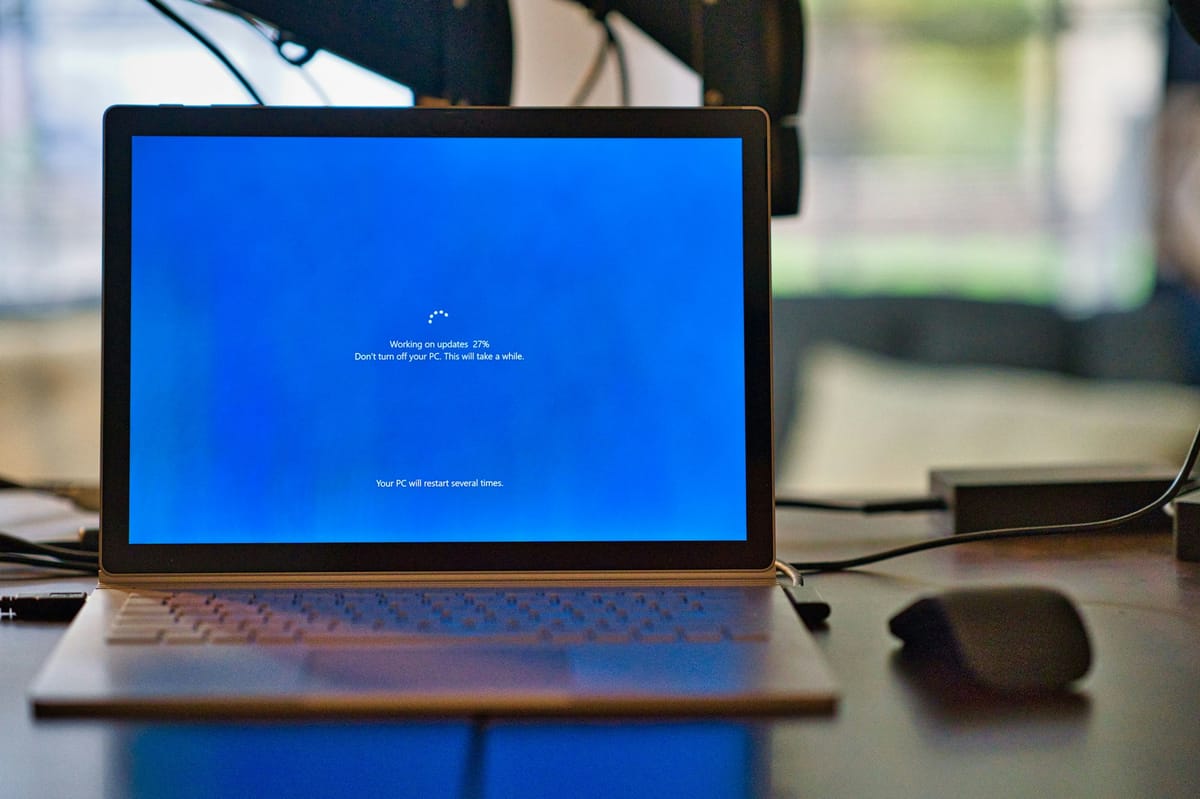
This guide provides step-by-step instructions to troubleshoot and resolve failed Windows updates.
Steps to Resolve Failed Updates
Check Logs for Errors
- Navigate to
C:\Windows\Logs\CBS\cbs.log. - Open the log file and search for entries with
ERRORto identify the problematic package.
Download the Failed or Missing Package
- Visit the Windows Update Catalog.
- Search for and download the required
.msufile for the failed update.
Copy the Downloaded MSU File to a Temporary Folder
- Move the downloaded
.msufile to a temporary folder, e.g.,C:\temp.
Extract the MSU File
- Open Command Prompt as an administrator.
- Run the following command to extract the contents of the
.msufile:
expand -F:* "C:\temp\windows6.4-kb3025096-x64_b18971964e8480df545aa2f1828629aa19033983.msu" C:\temp\KB3025096_msuExtract the CAB Files
- Create a new folder for the extracted CAB files:
mkdir C:\temp\kb1234567_msu\update- Extract the CAB files from the
.msufile:
expand -F:* "C:\temp\kb1234567_msu\Windows10.0-KB1234567-x64.cab" C:\temp\kb1234567_msu\update- Ensure to replace
kb1234567with the correct update name and point to the downloaded.msufile.
Restore Missing Files
- Run the following command to restore the missing files:
dism /online /cleanup-image /restorehealth /LimitAccess /Source:C:\temp\kb1234567_msu\update- Replace the path with the correct location of the extracted files.
Wait for the DISM Command to Finish
- Allow the DISM command to complete the patching process.
- Once finished, check for updates from the Settings app.
Restart the Machine
- Sometimes, Windows may take time to recognize the installed patches. Restart the machine to ensure all updates are applied correctly.